Parse, decode and validate HL7 v2 messages
PipeHat turns raw HL7® v2 messages into something you can read and trust, in three steps. It runs entirely in your browser, so the messages never leave your computer, and its de-identifier makes them safe to share.
- 1 Parse
Splits the raw text at its separators (
|^~&) into segments, fields, components and repeats. - 2 Decode
Names every piece for the message's version and explains it: PV1-2 is Patient Class, table 0004, and
Imeans Inpatient. - 3 Validate
Checks required fields, formats, codes and ICD-10, and which version from 2.1 to 2.8.2 the content actually fits.
01 Getting started
- Open PipeHat in Chrome, Edge, Firefox or Safari. It works offline once it's open.
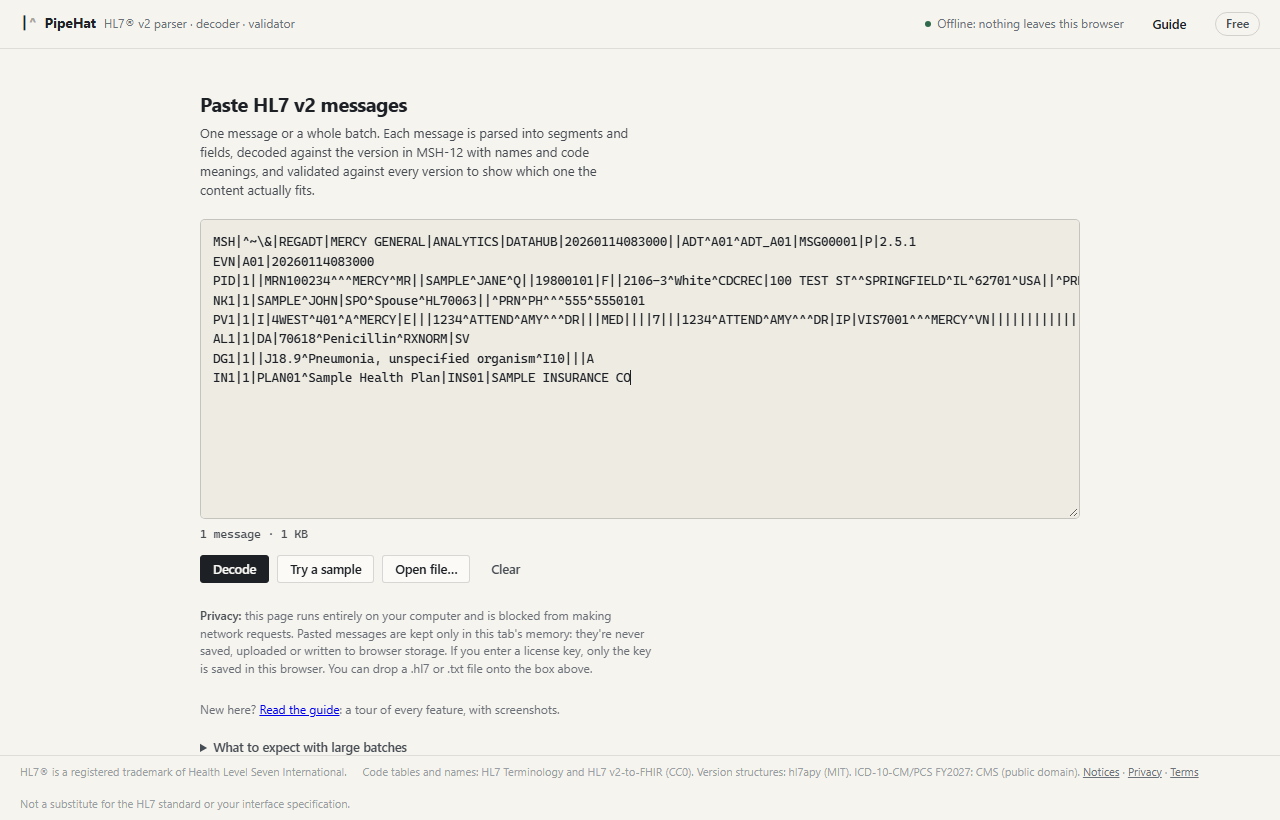
- Add messages in any of three ways: paste them into the box, click Open file…, or drop a
.hl7or.txtfile onto the box. One message or thousands; each message must start with anMSHsegment. Segments can be separated by any line ending, and MLLP framing characters and batch headers (FHS,BHS) are ignored. - Click Decode or press Ctrl + Enter. Not sure where to start? Try a sample loads one of five example messages.
Under the box, a counter shows how many messages and how much text you've added before you decode.
02 Reading a message
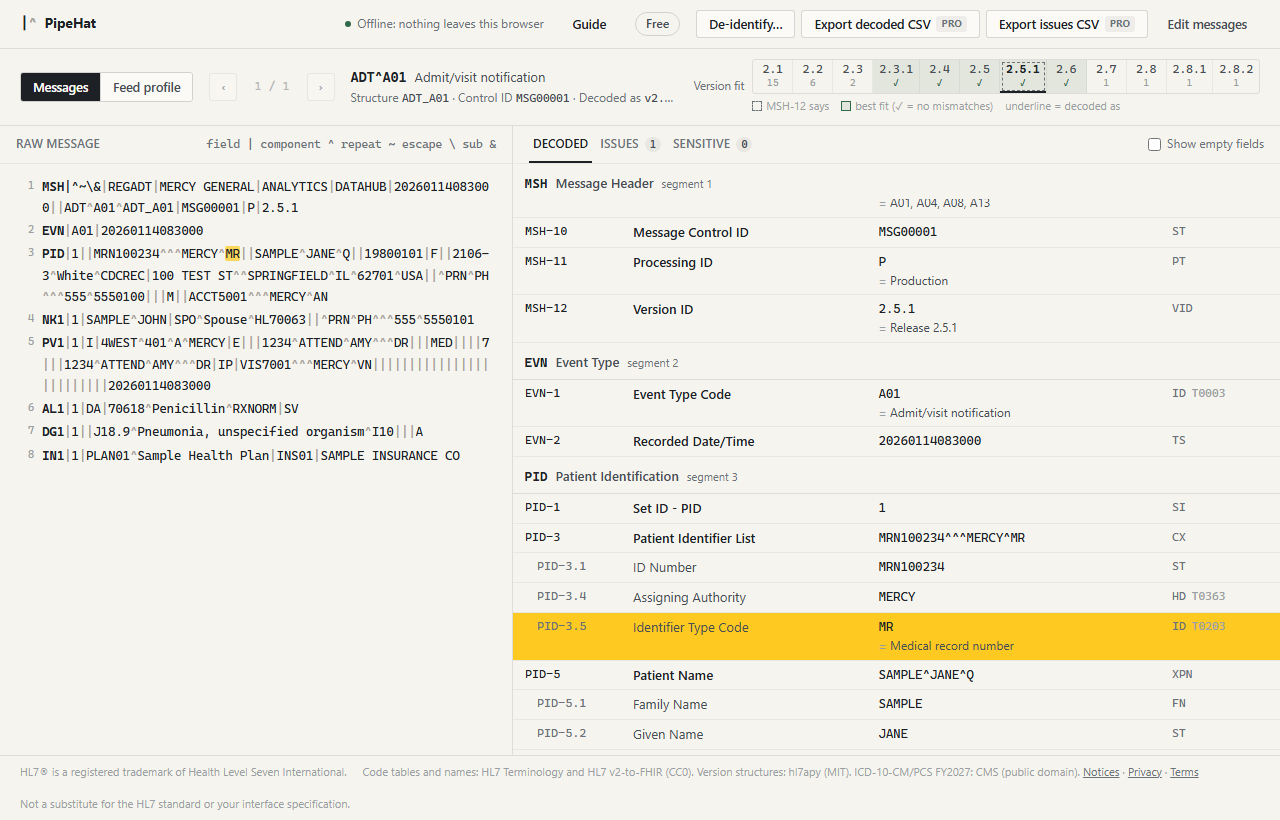
The message opens in two panes: the raw message on the left, with separators (| ^ ~ &) dimmed so the data stands out, and the decoded view on the right.
- Point at anything in either pane and the matching part lights up in the other. Click to pin the highlight; press Esc to clear it.
- Each row shows the element (
PID-3.5), its name, the value, and its data type and code table (ID T0203). Coded values show their meaning underneath, e.g.MR= Medical record number. - Show empty fields (top right) lists every field, including the ones that weren't sent.
- The bar above shows the message type and event (ADT^A01 Admit/visit notification), its structure, control ID and the version it was decoded as.
- With several messages, move with ← → (or J K), or click the counter (
1 / 500) for a list showing each message's warning count.
Try it: open the admit message sample
03 Version fit
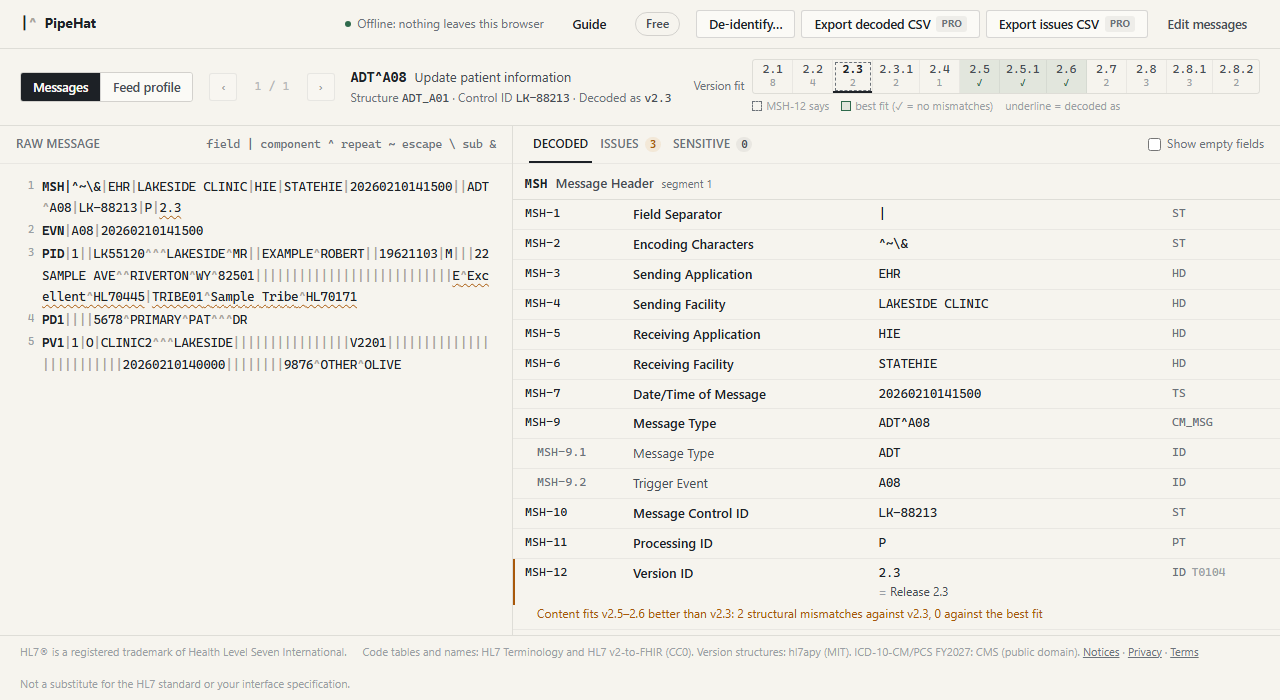
Senders often say one version in MSH-12 and send another. PipeHat checks every message against all 12 versions from 2.1 to 2.8.2 and shows the result in the Version fit strip at the top right.
- Each version shows how many structural mismatches the message has against it: fields that don't exist in that version, withdrawn fields with values, segments that don't belong, too many components, and so on. ✓ means none.
- Green marks the best fit, the dashed outline is what MSH-12 says, and the underline is the version the message is decoded as.
- When the content fits another version better, a warning appears at MSH-12, and individual fields say where they belong, e.g. PID-39 doesn't exist in v2.3; defined in 2.5 and later.
- Click any version to decode the message as that version.
04 Issue checks
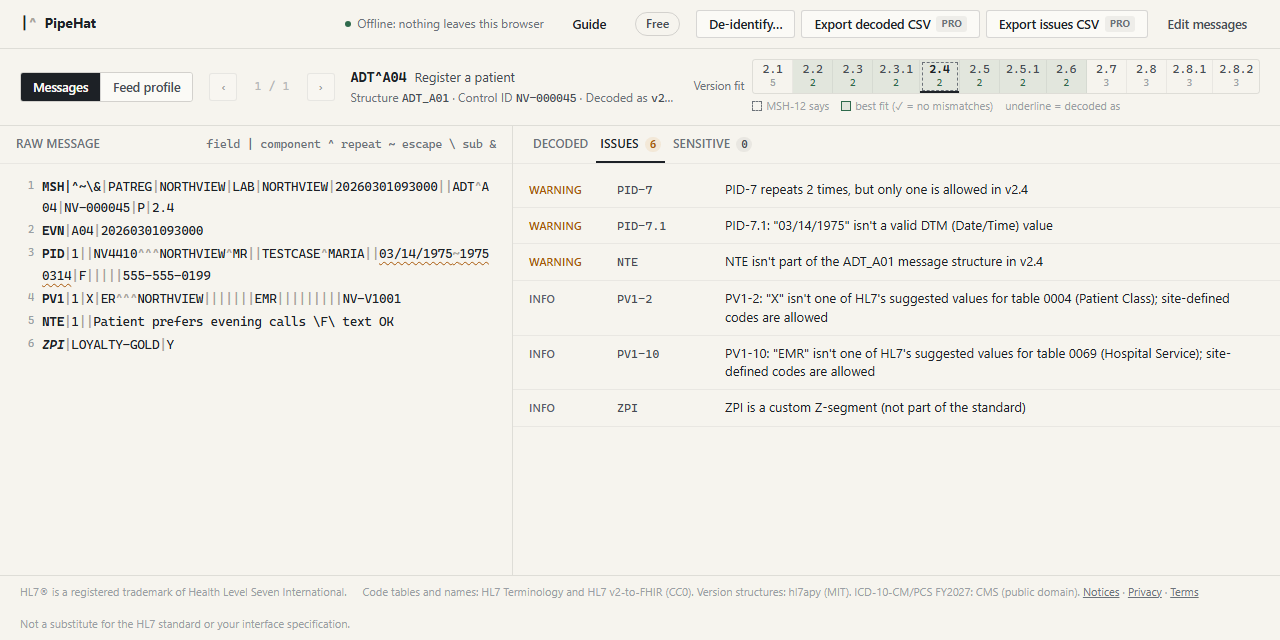
Problems appear in two places: under the field in the decoded view, and all together on the Issues tab. Click an issue to jump to its field. In the raw message, fields with problems are underlined.
| Check | Example |
|---|---|
| Fields that don't belong | A field that doesn't exist in this version, or was withdrawn but still has a value |
| Message structure | A segment that isn't part of the structure (e.g. NTE in ADT_A01), or a required segment that's missing |
| Required fields | A required field sent empty |
| Repeats and components | A field that repeats when only one is allowed; more components than the data type has |
| Formats | Dates, times and numbers that aren't valid, e.g. 03/14/1975 in a date field |
| Codes | A code missing from an HL7-defined table (warning), or not one of HL7's suggested values for a site-defined table (information only; local codes are allowed); deprecated codes |
| Custom segments | Z-segments are noted as custom |
Try it: open the "local quirks" sample
05 ICD-10 diagnosis and procedure codes
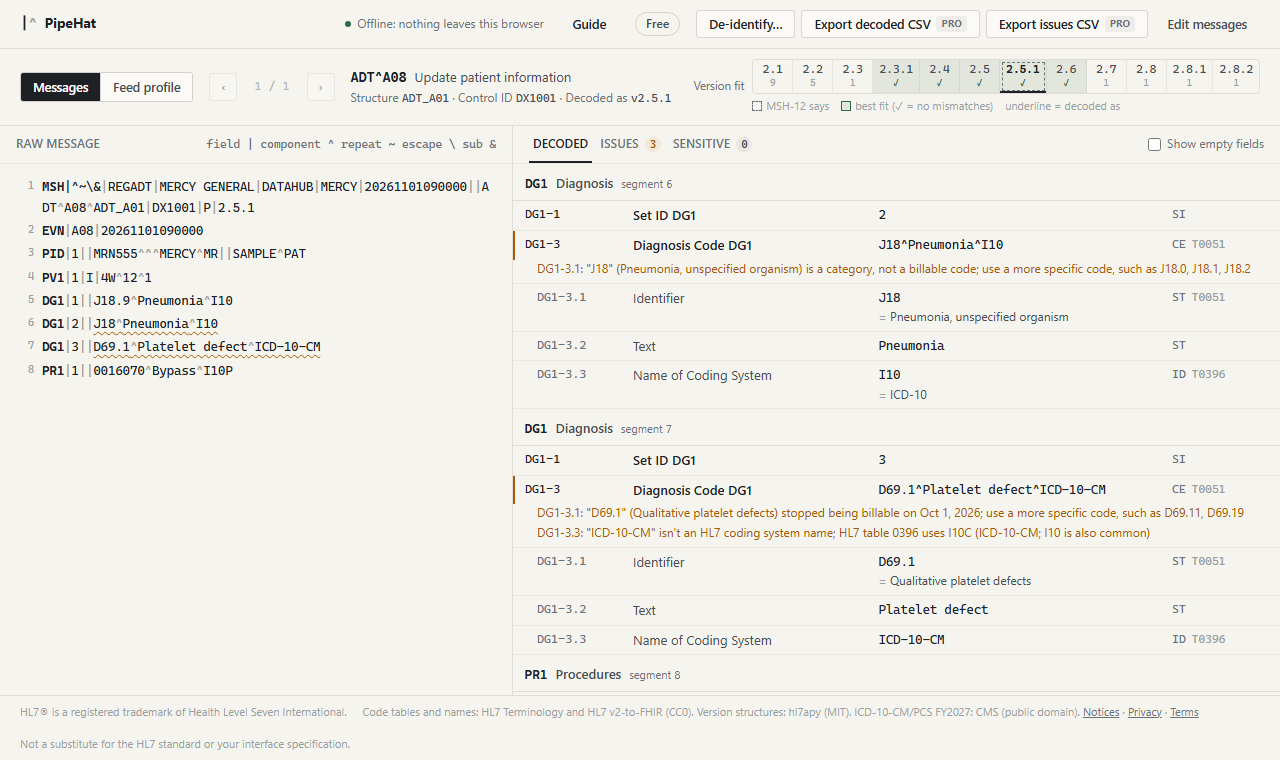
PipeHat includes the full ICD-10-CM and ICD-10-PCS code sets (fiscal year 2027, effective October 1, 2026). Diagnosis and procedure codes are checked wherever the coding system says ICD, and in DG1-3, PRB-3 and PR1-3 when it's left blank.
- Descriptions appear next to every valid code, even when the sender leaves out the text.
- Invalid codes are flagged, and codes deleted this year say so.
- Category codes that aren't billable (e.g.
J18) are flagged with billable alternatives (J18.0, J18.1, J18.2…), including codes that stopped being billable on October 1, 2026. - ICD-9 codes are noted, and non-standard coding-system names (e.g.
ICD-10-CMinstead of HL7'sI10C) get the standard value suggested. - CPT codes in procedure fields are left alone.
06 Large files and batches Pro and up
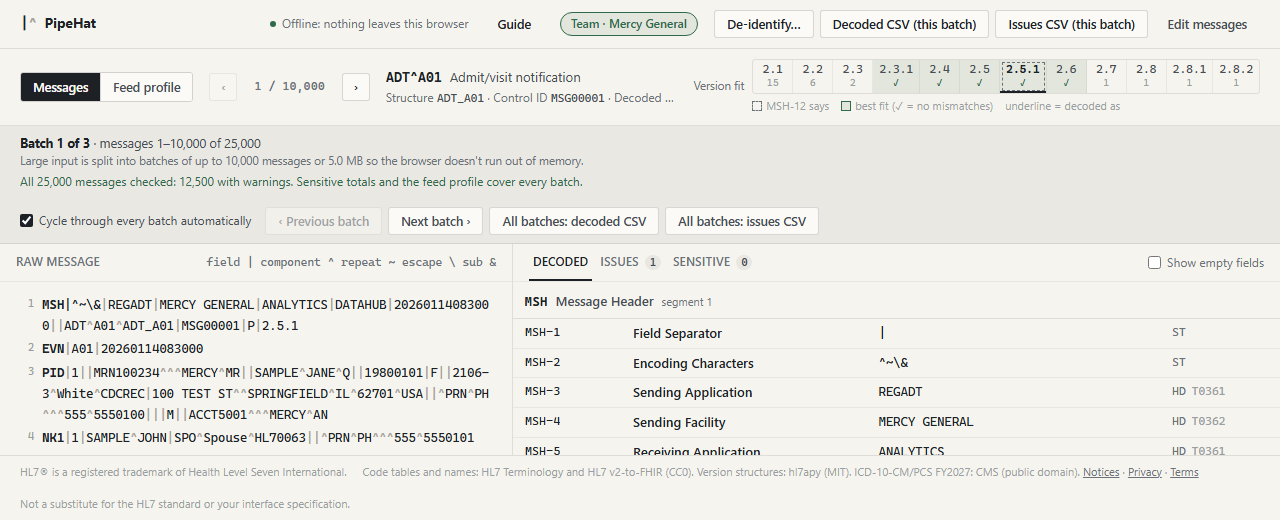
PipeHat handles very large inputs by working in batches of up to 10,000 messages or 5 MB of text. Bigger input is split automatically, and nothing is skipped. Files larger than one batch are never loaded whole: they're read from disk a batch at a time, so even very large logs work. For anything over a few MB, Open file… is faster than pasting.
- The first message appears straight away. The rest of the batch is checked in the background, with progress shown, filling in the message list's warning counts, the sensitive-information totals and the feed profile. You can keep working meanwhile.
- The batch bar shows where you are (Batch 1 of 3 · messages 1–10,000 of 25,000), with Previous and Next batch.
- Cycle through every batch automatically (on by default) checks every other batch in the background too, without changing the batch on screen. When it finishes, the totals, patient list and feed profile cover the whole input.
- All batches exports write a single CSV covering everything.
07 Exports to Excel Pro and up
Every export is a CSV file that opens straight in Excel.
- Decoded CSV: one row per value (field, component or sub-component), with message number, control ID, message type, version, element, names, data type, table, value, meaning and any issues. Good for filtering and pivot tables.
- Issues CSV: one row per issue, with severity and location.
- With batches, the buttons at the top export this batch; the All batches buttons in the batch bar export everything into one file.
- The feed profile, sensitive findings, sensitive patient list and de-identified messages have their own downloads, covered below.
08 Feed profile Team and Business
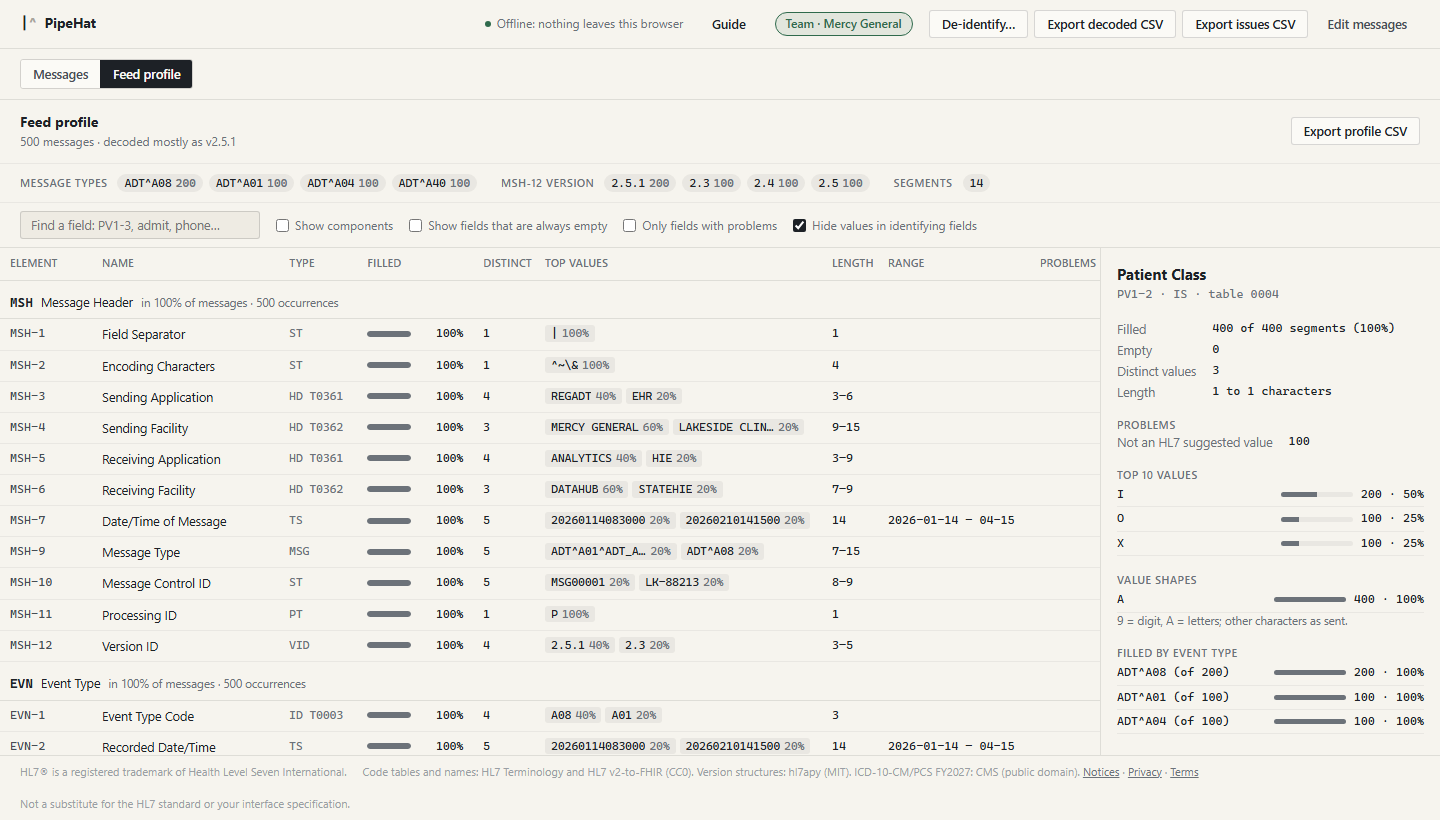
Switch from Messages to Feed profile (top left) to see what a sender actually sends, field by field, across all your messages.
- For every field: how often it's filled, empty or sent as an explicit null (
""); distinct values and the top values; shortest and longest lengths; date and number ranges; and a count of problems. - Click a field for its detail: the top 10 values, value shapes (
999-99-9999), future dates, repeats, problems, and how often it's filled for each event type (e.g. PV1-45 filled in 99% of A03s and 0% of A01s). - Fields holding ICD codes add a diagnosis breakdown: % billable, category codes, the share of "unspecified" codes, and counts by ICD-10 chapter.
- Search by field ID or name, show components, show fields that are always empty, or show only fields with problems.
- Hide values in identifying fields is on by default: names, IDs, addresses, phone numbers and birth dates show only as shapes and counts, on screen and in the export, so a profile is safe to share.
- Export profile CSV gives one row per field with all the statistics: a head start on an interface spec.
09 Sensitive information check Business
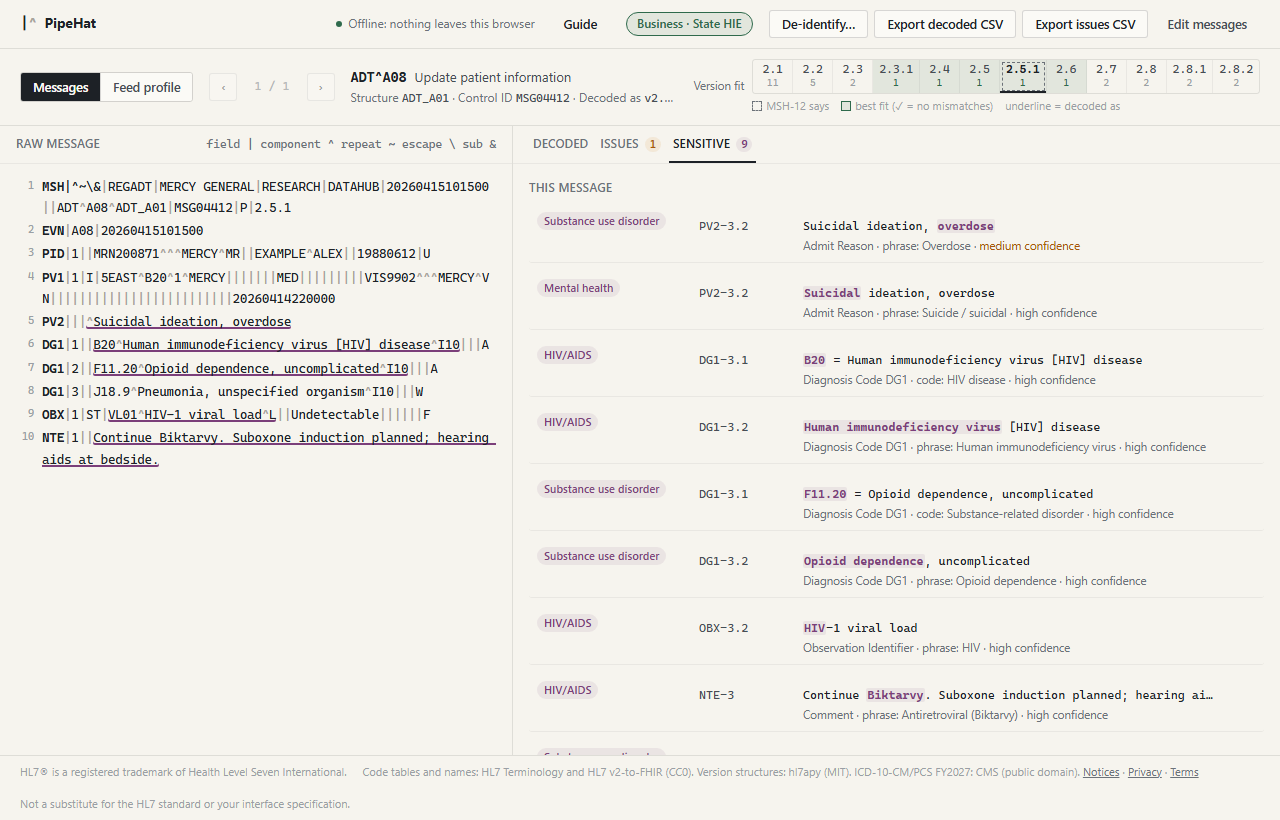
The Sensitive tab flags values that are often legally protected or especially private, so you can decide what to do with them. It flags only; nothing is removed.
- Eight categories: HIV/AIDS, substance use disorder (42 CFR Part 2; nicotine excluded), mental health including suicide and self-harm, sexually transmitted infections, reproductive health, genetic information, abuse and violence, and gender identity.
- Found by diagnosis code (ICD-10-CM, only in coded fields, so a bed called "B20" isn't flagged as HIV) and by phrase (whole words, so "hearing aids" isn't AIDS), including medication names such as Biktarvy or Suboxone. Each finding has a confidence level; medium means the term has other common uses.
- Flagged fields are underlined in purple in the raw message. Click a finding to jump to its field.
- All messages gives totals and a list of patients to review, rolled up by patient ID, with Export findings CSV and Export patients CSV.
- Turn categories off or add your own terms (e.g. a local clinic or program name) under Categories and custom terms.
Try it: open the sample with sensitive information (needs a Business license to see the details)
10 De-identifier All plans
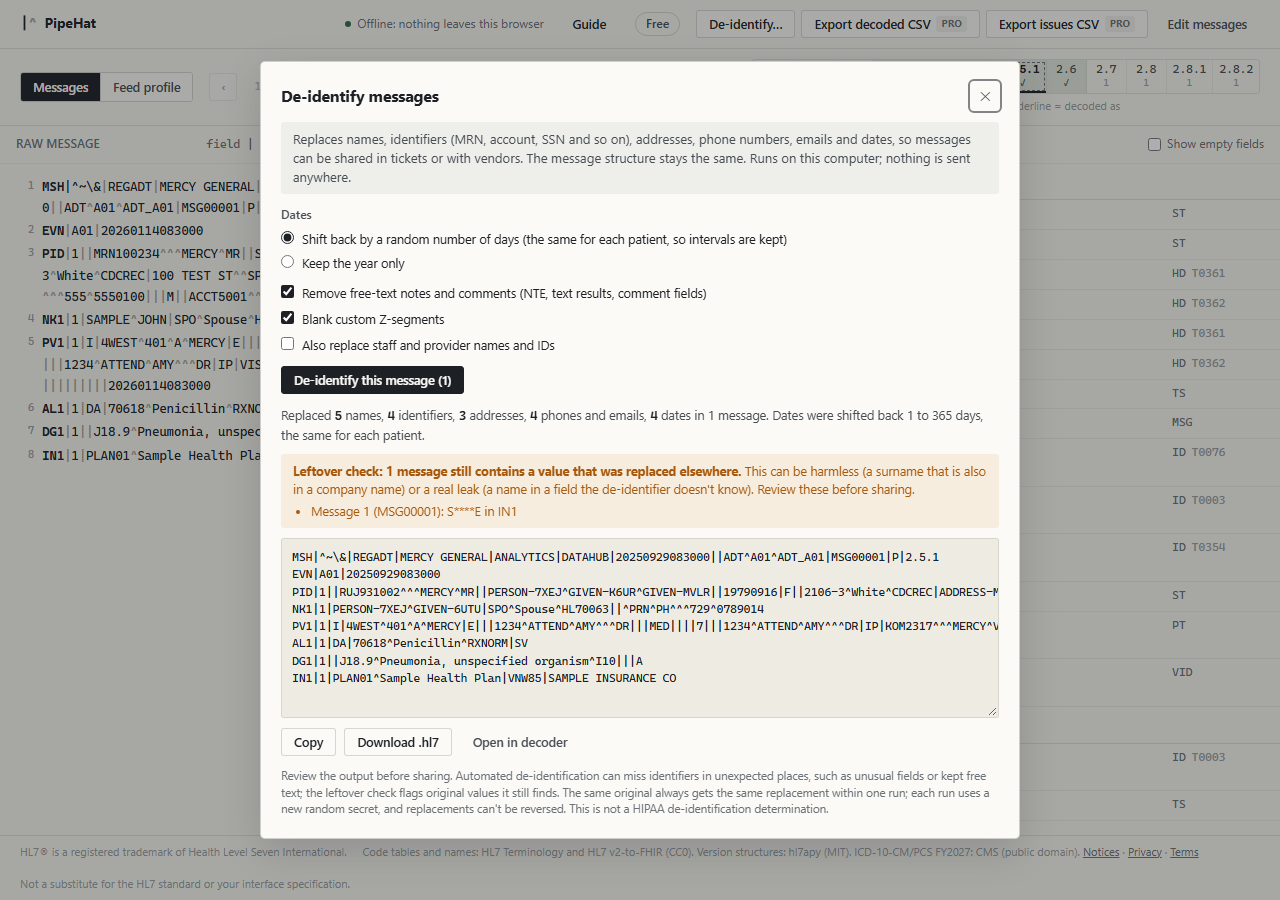
De-identify… (top of the page) replaces patient details so messages can be shared in support tickets, with vendors or with colleagues. The message structure, codes and diagnoses stay the same, so the output still decodes and tests like the original.
| What | Becomes |
|---|---|
| Names | Clear placeholders such as PERSON-K7Q2^GIVEN-M3X8 (patient, next of kin, guarantor, insured) |
| Identifiers | Fake values with the same format: MRN, account, visit, SSN, driver's license, policy numbers. Assigning authority and ID type are kept |
| Addresses | Street, city and county replaced; ZIP cut to 3 digits (000 for low-population areas); state and country kept |
| Phones, emails | Fake numbers in the same format; user-…@example.invalid |
| Dates | Shifted back 1–365 days, the same for each patient so intervals such as length of stay are kept; or year only |
| Free text, Z-segments | Removed by default, since names often hide there |
| Anywhere | Email, web and IP addresses and SSN-shaped numbers caught by a final sweep |
- Consistent within a run: the same patient gets the same fake ID and the same date shift in every message. Each run uses a new random secret, and replacements can't be reversed.
- The leftover check searches the output for any value it replaced and tells you where it still appears.
- Copy the result, download it as
.hl7, or open it in the decoder. The Free version de-identifies one message at a time; Pro and up de-identify the whole input into one file.
11 Plans and licenses
| Feature | Free | Pro | Team | Business |
|---|---|---|---|---|
| Decode, version fit, issue checks, ICD-10 | ✓ first 10 messages | ✓ | ✓ | ✓ |
| De-identify | ✓ one at a time | ✓ all messages | ✓ | ✓ |
| Any input size, batches | — | ✓ | ✓ | ✓ |
| CSV exports | — | ✓ | ✓ | ✓ |
| Feed profile | — | — | ✓ | ✓ |
| Sensitive information check | — | — | — | ✓ |
| Users | 1 | 1 | up to 5 | up to 20 |
Entering your license key
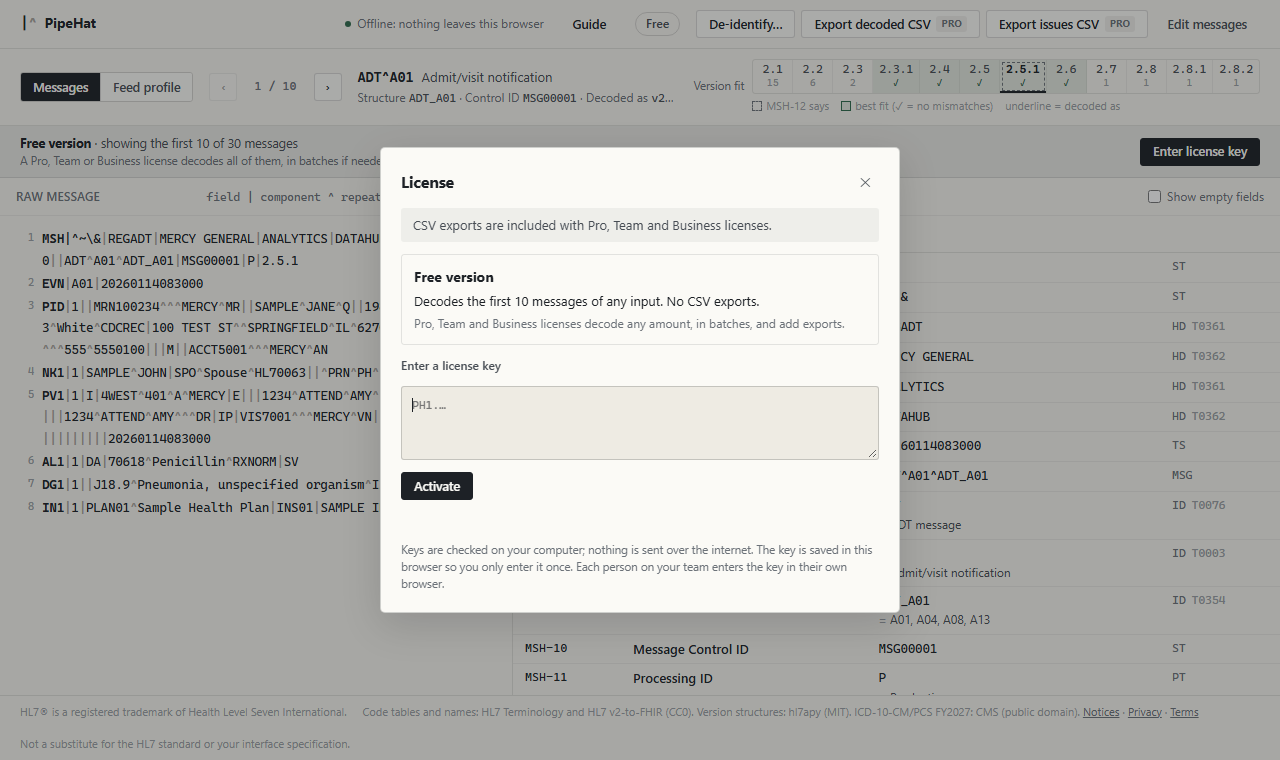
- Click Free (or your plan's name) at the top right.
- Paste the key from your purchase email (it starts with
PH1.) and click Activate. Line breaks added by email don't matter. - The badge changes to your plan and organization. The key is saved in this browser, so you only enter it once. Each person on your team enters it in their own browser.
Keys are checked on your computer; nothing is sent anywhere. A reminder appears 30 days before your license expires, and it keeps working for 14 days after, before switching to the Free version.
12 Keyboard shortcuts
| Keys | Does |
|---|---|
| Ctrl + Enter | Decode what's in the box |
| → or J | Next message |
| ← or K | Previous message |
| Esc | Clear the pinned highlight; close a panel or list |
| Enter in the license box | Activate the key |
13 Privacy and data sources
- Nothing leaves your computer. The page blocks every kind of network request (data requests, beacons, images, forms) with a Content Security Policy. Decoding, checks, profiles and exports all happen in your browser.
- Messages are never stored. They live only in the open tab and are gone when you close it. Only three small things are saved in your browser: your license key, your sensitive-information settings, and whether Cycle through every batch automatically is on.
- Where the reference data comes from:
- HL7 code tables and names: HL7 Terminology and HL7 v2-to-FHIR (CC0);
- version structures 2.1–2.8.2: hl7apy (MIT); messages that say a later version are decoded as 2.8.2, with a note;
- ICD-10-CM and ICD-10-PCS FY2027: CMS (public domain).
- PipeHat helps you read and check messages. It isn't a substitute for the HL7 standard or your interface specification.
14 Tips
"No messages found"
Each message has to start with an MSH segment at the beginning of a line. If you pasted from an email, check that the first characters of each message are MSH|.
A field says "not defined in this version"
The message is decoded as the version in MSH-12, and that version doesn't have this field. Look at the Version fit strip: a better-fitting version usually explains it. Click it to decode as that version.
Codes flagged as "not one of HL7's suggested values"
That's information, not an error. Many HL7 tables are site-defined, and local codes are allowed. Codes missing from HL7-defined tables are flagged as warnings.
Very large messages
Messages with thousands of segments show the first 1,500 segments and 3,000 decoded rows straight away, with a Show everything button for the rest.
Large files
Use Open file… or drop the file onto the box rather than pasting. Pasting tens of MB is slow in any browser; opening a file isn't.